Live Alerts
Setup Twitch Live Alerts
Memebot can now be setup to post Twitch going-live notifications for you and your friends right in your Discord server!
Creating a Live Alert
Visit the Web UI, sign in and select your server.
Click on the "Twitch Live Alerts" link in the left-hand navigation bar.
Click "Add" in the top-right corner of the page.
You will be presented with a form to setup a live alert.
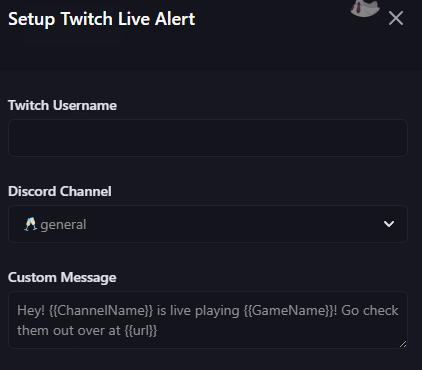
The first input is the Twitch username you wish to monitor, please make sure this is correct.
The second input is a dropdown to choose the channel in your Discord server you wish to post the live alerts in.
WARNING
The bot must have permission to post in this channel to work. Many times people setup live alerts channels to only allow admins to post, and forget to give the bot permission to send messages, causing the feature not to work.
The third input is the custom message to use for the live alert. Similar to the custom text commands, there are a handful of parameters (the variables in the {{}} brackets) you can use to inject information into the message.
here is a description of each value available for use:
{{ChannelName}}- Outputs the username of the channel{{GameName}}- Outputs the name of the Twitch category for this stream{{Title}}- Outputs the stream title{{url}}- Outpouts the twitch.tv URL to the stream
The fourth option (Delete) will, if enabled, automatically delete the alert once the streamer goes offline.
The webhook options are decumented in the next section.
Once you've written an awesome custom alert, click the Add button and your stream notification will pop up the next time the user goes live!
NOTE
If you add the alert when the streamer is already live, you will not get a notification. It won't come through until they go live AFTER you've added the alert.
Webhooks
If you'd prefer your messages to come from a custom bot username/pfp instead of the standard BizzTheMemeBot user, you can set the bot up to post via Discord webhooks instead of its bot user.
This will still work with the auto-delete functionality as well if you use that.
Webhooks are a functionality of Discord that allows a bot or application to create messages through a special API without the use of a bot user. A webhook can only be setup by an admin, and will only be attached to ONE channel in Discord.
So, if you have multiple channels for alerts, you will need to create multiple webhooks (for example, one for your own live alerts, and another that posts in your community shoutouts channel).
You can setup one global webhook for all alerts, but you may also set individual webhooks up for each alert you add. You can even use the same webhook for multiple alerts that go to the same channel, but change the username and pfp for it on a per-alert basis.
Setting up the webhook in Discord
Before you continue, you'll need to create a webhook URL in Discord itself for the channel you wish to post the alerts in.
In your Server Settings in Discord, you will find webhooks under Apps -> Integrations -> Webhooks.
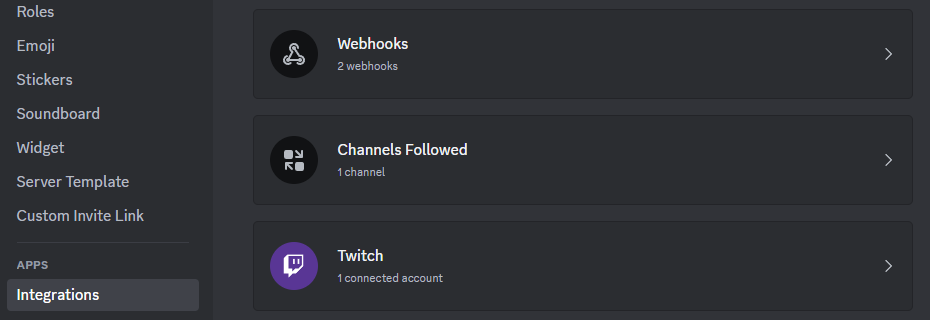
Click Webhooks and click the New Webhook button.
This will create a new webhook with a random name, click to drop it down and you can configure it.
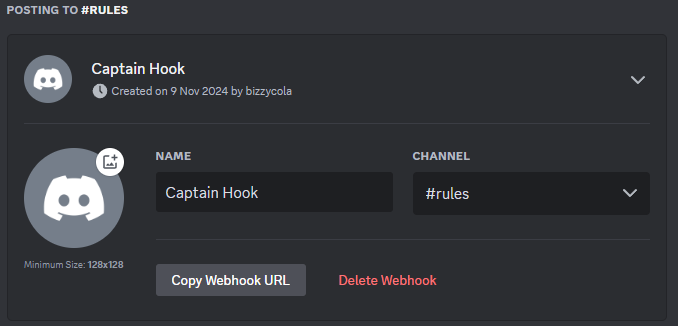
You don't need to set a username as pfp here if you don't wish to, as you can override this directly when you setup alerts in the dashboard.
Change the channel to your desired channel to post in, click Save Changes.
Click Copy Webhook URL, which will put the URL in your clipboard. We'll need this later.
WARNING
Make sure you keep this safe. Anyone who gets this URL can post whatever they want in the configured channel. If it gets compromised, delete it and create a new one.
Setup Global Webhook
If you just want one webhook to apply to all (or most) live alerts, you can setup a single global webhook in the settings.
INFO
You can still override this on a per-alert basis, but note that if you have a global webhook enabled, there is never any reason the bot would post with it's main bot account for alerts. As such, the "Channel" option in the live alert setup above would have no affect, as this is unable to override the webhook channel setting.
Head to the Guild Settings tab in the memebot dashboard, tick "Enable" under "Global Live Alert Webooks".
Put the copied webhook URL into the Webhook URL box.
Set your username and upload a profile picture, if desired.
INFO
If you don't supply a username or a profile picture, the ones assigned to the webhook in Discord will be used instead.
Click the Save button, and if it saves successfully, all future alerts will now be posted by this webhook unless specifically overridden in an individual alert (which you may wish to do for your own channel's live alert).
Setup Alert Webhook
A webhook setup in an individual alert will always take presedence over any other webhooks or the bot user.
The setup is pretty much the same, create a new live alert (or edit an existing one), tick the Webhook Enable checkbox, and put in the webhook URL, and optionally a username and profile picture, and click Add (or save, if editing).
If you have any questions or issues, feel free to reach out!