Custom Commands
Text Commands
Text commands are the simplest type of custom command. They allow you to create a command that will respond with a simple text message. You can also use arguments and counters to make your commands more dynamic.
Creating a Text Command
Visit the Web UI, sign in and select your server.
On the page displayed, click the "Add" button on the top right-hand side of the page.
You will be presented with some options for creating commands.
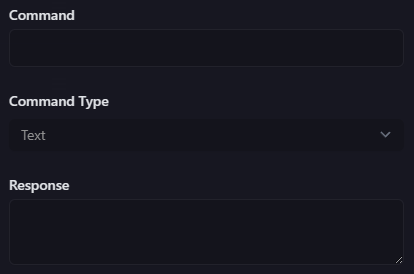
The first input is the command name. This is the name that will be used to trigger the command. For example, if you enter "!hello" here, the command will be triggered by typing "!hello" in a channel that the bot has access to.
The second input is the command type. This is the type of command you are creating. For text commands, you should select "Text".
The third input is the command response. This is the text that will be sent to the channel when the command is triggered.
Text-only responses
Enter the text you wish to respond with in the Command Response input.
Counter commands
If you'd like to include an automatic counter in your command, you can do so by using the following syntax:
Hello, this command has been used {{counter::mycommand}} times!
As you can see, the counter is inserted into the response using the {{counter::mycommand}} syntax. The counter name is the name of the command, so if your command is called hello, the counter name might be hello. The counter can be named whatever you like, though note if you create multiple commands with the same counter name, the values will be shared.
Other command arguments
There's a few other arguments besides the counter you can use. These are:
{{channel}}- Returns a mention string for the channel this command was used in.{{from}}- Returns a mention string for the user who used this command.{{to}}- Returns a mention string for the user this command was used on (only if a user was mentioned in the command usage, such as!hello @person){{server}}- Returns the name of the server this command was used in.
Here's an example command using some of the above arguments:
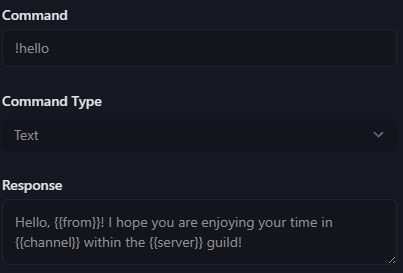
This might return a response like:
Hello, @user! I hope you are enjoying your time in #my-channel within the Cool People guild!